


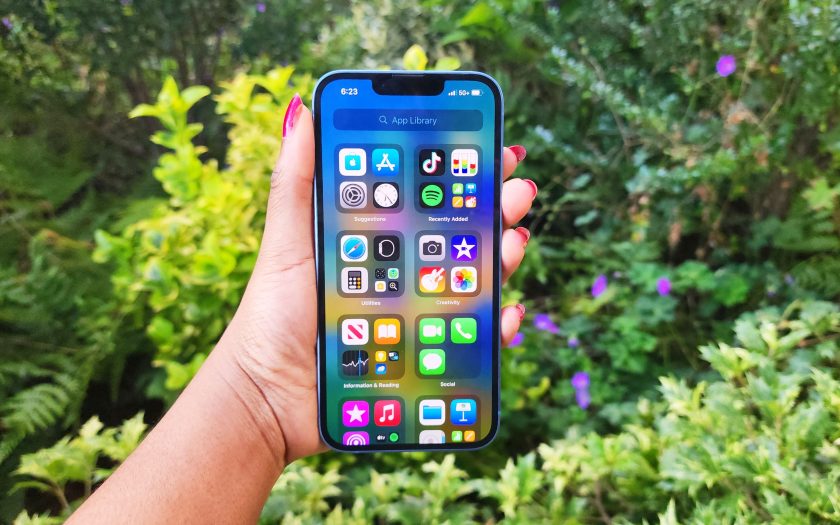
Knowing how to lock the screen on your iPhone is crucial, particularly if you have a tiny tot who loves to play around with your phone, but you don’t want to deal with the headache of them pressing buttons or launching apps you don’t want them accessing.
Fortunately, Apple added a feature to iPhone called “Guided Access” that lets others use your phone, but they’ll remain locked to the current screen or app. And you don’t have to worry about them making any erratic presses and taps.
How to lock screen on iPhone
1. Go to Settings.
(Image credit: Future)
2. Navigate to Accessibility.
Accessibility on iPhone (Image credit: Future)
3. Scroll down and tap on Guided Access.
Guided Access (Image credit: Future)
4. Make sure the toggle for Guided Access is turned on.
Guided Access (Image credit: Future)
5. Navigate to the app you’d like to lock the screen on and press the side button (or home button) three times.
iPhone side button (Image credit: Future)
6. This should bring up the Guided Access overlay. Tap on Start.
Guided Access overlay (Image credit: Future)
7. If you haven’t set up a Guided Access passcode yet, you’ll be prompted to input a new six-digit passcode. You’ll be asked to verify it.
8. At this point, you should get a message that says, Guided Access has started.
To exit out of Guided Access, triple press the side button again.
Today’s best Apple Airpods Max deals


